Fix GTA Mzansi Black Screen on Android
Many players experience a black screen issue when launching GTA Mzansi on Android devices. In this situation, the game may open normally but display a blank screen instead of loading the gameplay environment.
This problem usually occurs when installation files are incomplete or placed in the wrong directory.
Fortunately, in most cases the issue can be resolved using a few simple troubleshooting steps.
First check the file edition. GTA Mzansi, Kasi Vibes and Stereo Hearts use separate file sets. A mismatched APK and OBB can cause startup errors or a black screen.
If you have not installed the game correctly, download the latest version from the GTA Mzansi APK Download page and follow the proper setup using the installation guide.
Why GTA Mzansi Shows a Black Screen
Several installation or device-related issues can cause the game to display a blank screen.
The most common reasons include:
- Incorrect OBB file placement
- Incomplete APK installation
- Insufficient device storage
- Device compatibility limitations
- Corrupted game files
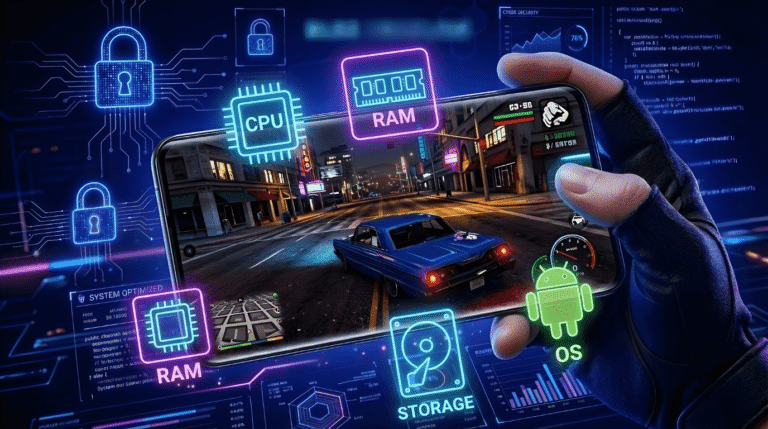
Before troubleshooting further, make sure your device meets the GTA Mzansi APK System Requirements to avoid compatibility issues.
Ensuring the correct installation process usually resolves most black screen errors.
If the game fails to install entirely, you can also follow our guide on Fix GTA Mzansi Not Installing (Download Failed Error).
Fix GTA Mzansi Black Screen (Step-by-Step)
Follow these steps to fix the problem.
1. Check OBB Folder Placement
The OBB folder must be placed in the correct directory.
Android / OBB / com.rockstargames.gtasa
If the OBB folder is not placed in this location, the game may launch but display a black screen instead of loading the gameplay environment.
2. Restart Your Android Device
After installing the APK and OBB files, restart your device before launching the game.
Restarting the device helps clear temporary cache and allows the game files to load correctly.
3. Verify Device Compatibility
If your Android device does not meet the required system specifications, the game may fail to load properly.
Before installing the game, check the full GTA Mzansi APK System Requirements guide to confirm compatibility.
4. Reinstall the Game Files
If the issue continues, reinstall the game using a fresh download.
Follow these steps:
- Delete the installed APK file
- Remove the OBB folder from your device
- Download the files again
- Install the APK and place the OBB folder correctly
Make sure you download a fresh and verified version from the GTA Mzansi APK Download page before reinstalling.
A clean installation usually fixes corrupted file problems.
5. Check Available Storage
Insufficient storage space may prevent the game from loading properly.
Ensure your device has enough free storage for both the APK file and the OBB data files.
Additional Troubleshooting Tips
If the problem still persists after following the steps above:
- Restart your device again
- Ensure the APK download completed fully
- Verify the OBB file is extracted properly
- Confirm the game files are placed in the correct directory
These steps resolve most GTA Mzansi black screen errors on Android devices.
If the game is running but experiencing lag or performance issues, follow the Best GTA Mzansi Graphics Settings guide for smoother gameplay.
Frequently Asked Questions
Why does GTA Mzansi show a black screen on launch?
The most common reason is incorrect OBB file placement or incomplete installation.
How do I fix GTA Mzansi black screen on Android?
Follow the Fix GTA Mzansi Not Installing guide if the issue is related to installation errors, or verify your system compatibility before reinstalling.
Can device compatibility cause the black screen issue?
Yes. If the device does not meet the minimum requirements, the game may fail to load properly.
Final Advice
Most black screen problems occur because the OBB file is placed incorrectly or the APK installation was incomplete. Following the correct installation process usually resolves the issue.
For the best results, download the latest version from the GTA Mzansi APK Download page, verify your device compatibility using the system requirements guide, and follow the correct installation process.